
Secure Boot is one of those system settings that many users have heard of but few fully understand. It sounds like a security feature you should definitely have enabled, but if you have ever installed Linux, used an older operating system, or upgraded from Windows 10 to Windows 11, you may have run into Secure Boot as an obstacle rather than a protection. This guide explains what Secure Boot actually does, why it matters, and exactly how to enable it on your system.
Read More About Spotmagazines.
Understanding Secure Boot and Its Purpose
Secure Boot is a security standard developed by PC industry members and defined in the UEFI specification. It was designed to protect the boot process from a specific category of attack: bootkits and rootkits that load before the operating system and therefore before any antivirus or security software can detect them.
When Secure Boot is enabled, the UEFI firmware checks a digital signature on every piece of software that attempts to load during the boot sequence — the boot manager, the OS loader, and critical drivers. If the signature matches a key stored in the firmware’s authorized database, the software is allowed to run. If the signature is missing or does not match, the firmware refuses to load it and halts the boot process.
Microsoft requires Secure Boot to be enabled on systems running Windows 11 — it is one of the TPM 2.0 and Secure Boot requirements that Windows 11 checks during installation. This means many users who upgraded from Windows 10 to Windows 11 had to enable Secure Boot first, and many users who disabled it to install Linux have found they need to re-enable it afterward.
How to Check If Secure Boot Is Currently Enabled
Before enabling Secure Boot, verify whether it is already on. On Windows, press the Windows key, type msinfo32, and press Enter to open System Information. Look for the Secure Boot State field in the System Summary section. If it reads On, Secure Boot is active. If it reads Off, it is disabled and you can follow the steps below to enable it.
On Linux, open a terminal and run the command mokutil –sb-state. If Secure Boot is enabled, the output will read SecureBoot enabled. If not, it will read SecureBoot disabled.
You can also check directly in the UEFI settings during boot, where Secure Boot status is almost always displayed on the Security or Boot tab.
How to Enter Your UEFI Firmware Settings
Enabling Secure Boot requires accessing your UEFI firmware settings — what most people still call the BIOS. The method for entering UEFI depends on your computer’s manufacturer.
For most Windows systems, the fastest method is through Windows itself. Go to Settings, then System, then Recovery. Under Advanced Startup, click Restart Now. When the blue menu appears, select Troubleshoot, then Advanced Options, then UEFI Firmware Settings, and then Restart. The computer will reboot directly into UEFI.
Alternatively, you can press the firmware entry key during the boot sequence — immediately after pressing the power button. Common keys are Delete, F2, F10, F12, or Escape depending on the manufacturer. Dell systems typically use F2. ASUS motherboards typically use Delete or F2. HP systems typically use F10 or Escape followed by F10. Lenovo systems typically use F1 or F2. The exact key is usually displayed briefly on screen at startup.
How to Enable Secure Boot in UEFI
Once inside the UEFI settings, navigate to the Security tab or the Boot tab — the exact location varies by motherboard manufacturer and UEFI version, but Secure Boot settings are almost always in one of these two locations.
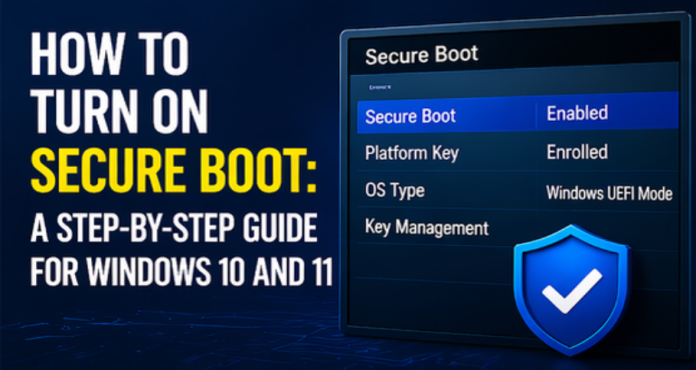
Look for a setting labeled Secure Boot. It will typically show the current state as Enabled or Disabled and have a toggle or selection option. Change it to Enabled.
Before you can enable Secure Boot, the system may require you to set the Secure Boot Mode to Standard or to set the UEFI mode correctly. If you see an option for Secure Boot Mode, set it to Standard rather than Custom. Standard mode uses Microsoft’s pre-installed certificate database, which covers Windows and most hardware drivers. Custom mode allows you to manage the key database manually, which is relevant for Linux setups but not needed for standard Windows use.
If Secure Boot is grayed out and cannot be changed, your system is likely in Legacy or CSM mode rather than UEFI mode. In this case, you first need to ensure the system is set to UEFI mode in the Boot tab before Secure Boot options become available.
Once Secure Boot is turned on, save your settings and exit the BIOS In most UEFI interfaces, the save and exit option is on a separate Exit tab, accessed by pressing F10, or by selecting Save Changes and Reset.
What Is Secure Boot Mode and Which Should You Choose?
UEFI implementations typically offer two Secure Boot modes: Standard and Custom. Standard mode uses Microsoft’s signing certificates, which are trusted by Windows and the vast majority of hardware drivers available today. This is the correct setting for most Windows users and for dual boot users running a Linux distribution that ships with a Microsoft-signed shim such as Ubuntu, Fedora, and most major distributions.
Custom mode allows you to add, remove, or replace the keys in the Secure Boot database. This is used by advanced Linux users who want to sign their own kernels, by developers building custom boot environments, or by administrators who want to restrict what can boot on a machine to only internally-signed software. Custom mode is not necessary or recommended for general users.
Enabling Secure Boot With Linux Installed
Modern major Linux distributions including Ubuntu 22.04 and later, Fedora 37 and later, and Linux Mint ship with a Microsoft-signed bootloader called a shim. This shim acts as an intermediary — it carries a Microsoft signature that Secure Boot accepts, and it then verifies the Linux boot manager using its own key database. The result is that these distributions boot successfully with Secure Boot enabled without any additional configuration.
If you install one of these distributions with Secure Boot enabled, the installation process handles shim setup automatically. If Secure Boot was disabled when you installed Linux and you are now enabling it, boot your Linux system after enabling Secure Boot and verify it still starts correctly. If it fails to boot, you may need to boot from a live USB and use the distribution’s repair tools to set up the shim.
Older Linux distributions and custom kernels may not be signed and will fail to boot with Secure Boot enabled. In these cases, you have three options: switch to a distribution that supports Secure Boot, sign the kernel yourself using Machine Owner Keys, or keep Secure Boot disabled.
Common Issues When Enabling Secure Boot
The most common problem after enabling Secure Boot is a device that previously booted an unsigned bootloader — such as an older version of Linux or a third-party operating system — now refusing to start. If Windows is the primary OS and it was installed in UEFI mode, it will continue to boot correctly with Secure Boot enabled since Windows has been signed with Microsoft’s certificates for years.
Another common issue involves driver signing. Windows requires drivers to be digitally signed, and Secure Boot adds an additional layer of verification. Most modern hardware drivers from reputable manufacturers are signed. Custom or older drivers may not be, which can cause hardware to stop working after Secure Boot is enabled. If specific hardware stops functioning after enabling Secure Boot, check for updated signed drivers from the manufacturer.
Frequently Asked Questions
Does enabling Secure Boot erase any data?
No. Enabling or disabling Secure Boot is a firmware-level setting change that has no effect on your stored data, installed applications, or operating system files. It only changes what the firmware verifies at the moment of boot.
Does Secure Boot slow down the computer?
No. Secure Boot signature verification occurs during the boot sequence and adds a negligible amount of time — typically measured in milliseconds. There is no ongoing performance impact during normal operation once the OS has loaded.
Why is Secure Boot required for Windows 11?
Microsoft made Secure Boot a hardware requirement for Windows 11 to reduce the attack surface for firmware-level malware, which has grown more sophisticated over the years. Combined with the TPM 2.0 requirement, it creates a more secure boot chain from the firmware level upward.
Can I disable Secure Boot after enabling it?
Yes. Secure Boot can be toggled on or off at any time in the UEFI settings. Disabling it does not affect your data or operating system installation. The change takes effect on the next boot.
Is Secure Boot the same as a BIOS password?
No. A BIOS or UEFI password prevents unauthorized users from accessing the firmware settings interface. Secure Boot prevents unauthorized software from loading during the boot sequence. They are complementary security features that operate at different levels.
Conclusion
Enabling Secure Boot is a straightforward process that provides meaningful protection against boot-level malware. The steps — entering UEFI, finding the Secure Boot setting, switching it to Enabled in Standard mode, and saving — take under five minutes on most systems. For Windows 11 users, it is a system requirement. For all users, it is a worthwhile security baseline that costs nothing to maintain once enabled.